File Sync keeps two drives in step and shows you everything first
Keep two drives in step.
Two drives, and no clue which one is complete? File Sync is a free, open-source Mac app that shows exactly what differs, then makes the target match the master. Nothing changes until you have looked. It is free to download today, and joins the Studio at its first full release.
Mac
macOS 15
SwiftUI
Open source
Free
Free download
Every difference, one listReview before anything changesPick a drive or folderRuns when you plug inFound a new photo, waiting for youBoth sides match
01 · What it is
One master, one copy, no guessing
Photos on the laptop, a backup on an external drive, a second copy on another one. After a while nobody knows which is complete. File Sync answers one plain question: what is on this side that is not on that side?
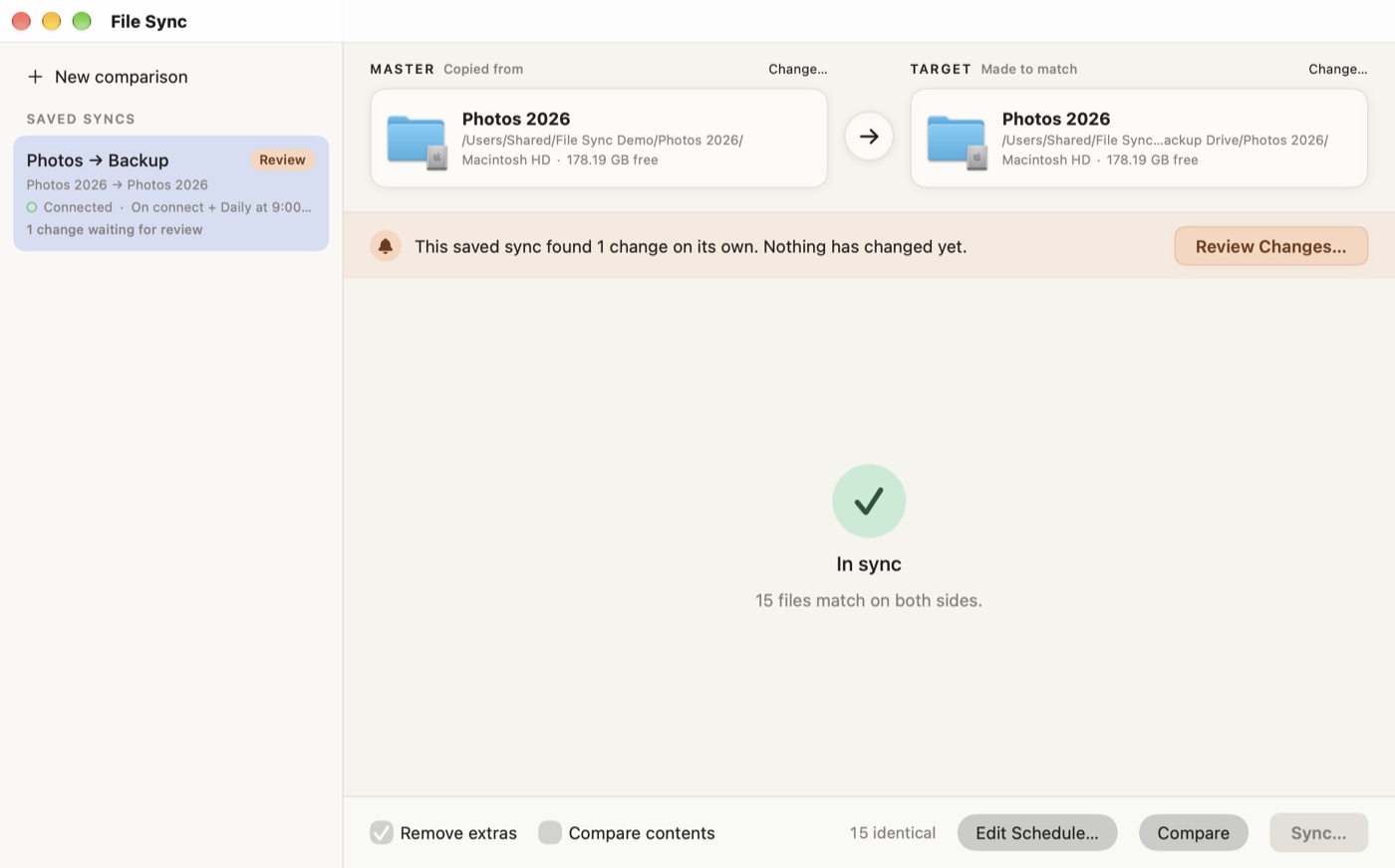
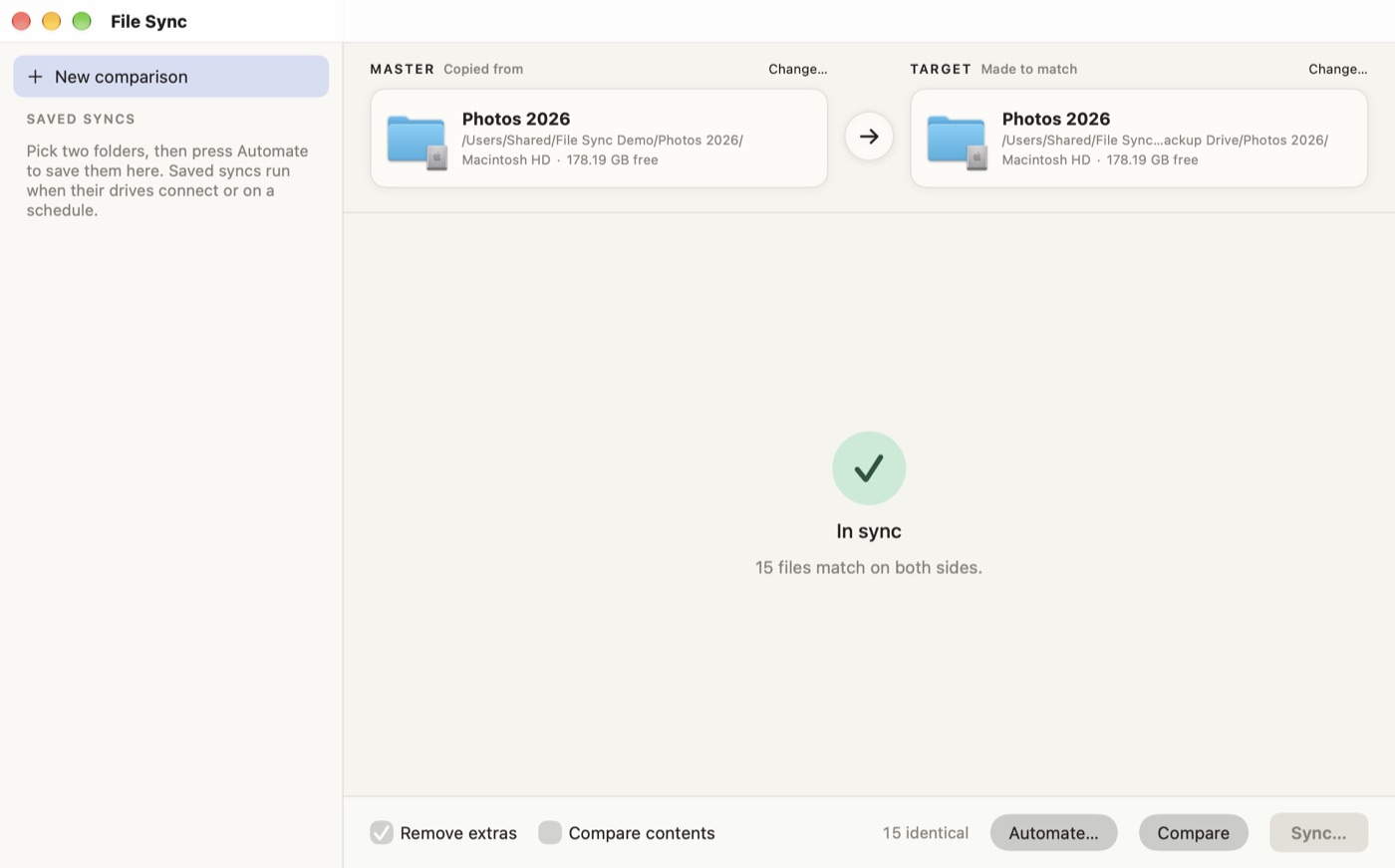
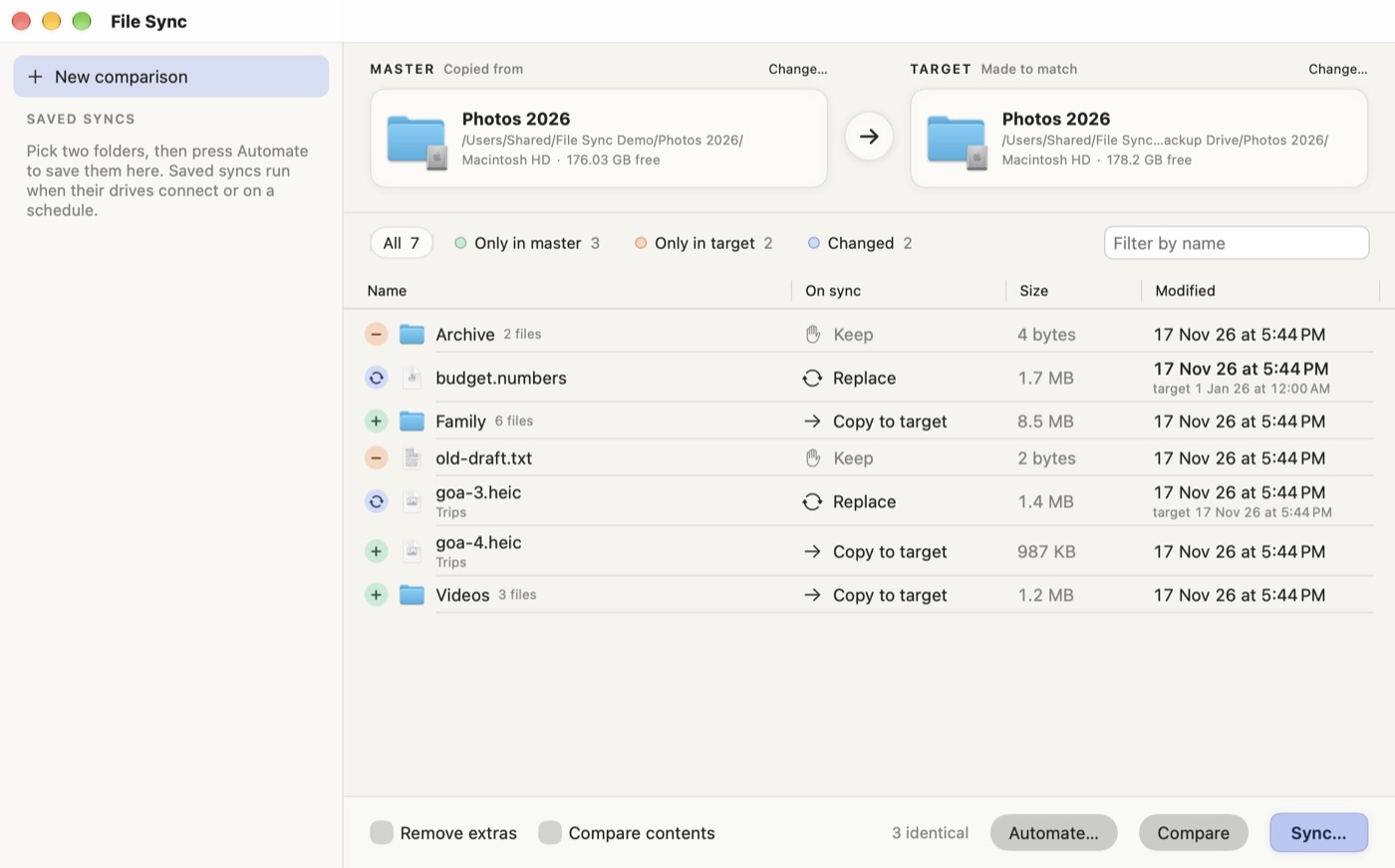
You pick the master, and the other side is made to match it. Press Compare and every difference lands in one of three groups, each with its own colour and a filter chip that counts it:
Only in master: copied to the target.
Only in target: kept, or moved to the Trash if you turn on Remove extras.
Changed: the target's copy is replaced, with a note when the target's copy is newer.
A whole folder missing from one side shows as one row with its file count, not hundreds of lines. Files match by size and date, with two seconds of slack for exFAT drives, and a switch can compare the contents too. Clutter like .DS_Store is ignored.
02 · Who it is for
Anyone with more than one copy of anything
It is for photographers with a laptop and two backup drives, for anyone who keeps a project on a stick and a copy at home, and for the person who has said "I think this one is the newest" one time too many. You need a Mac on macOS 15 or later, Apple silicon or Intel, and nothing else.
03 · How it feels
Soft colours and no surprises
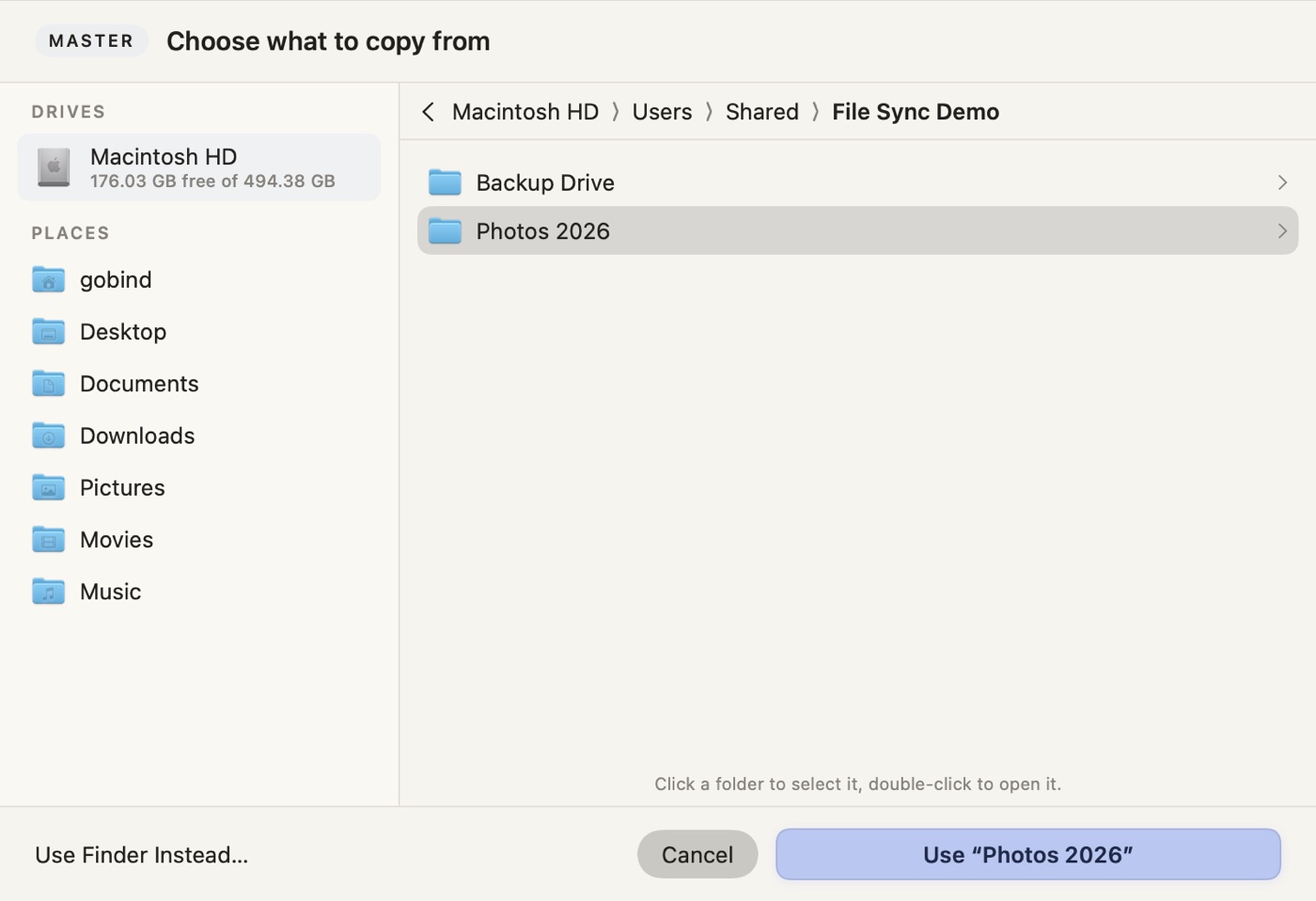
A sync goes wrong the moment you pick the wrong folder, so File Sync has its own picker. Plugged-in drives sit on the left with their free space, folders on the right, and the big button spells out exactly what you will get, such as Use "Photos 2026". You can also drop a folder in from Finder. Unplug a drive and its card says so; plug it back in and the folder returns.
The window is warm and homemade: soft pastel badges, mint for copies, peach for extras and baby blue for changes, with dark text on pastel buttons so they stay easy to read. Close the window and File Sync waits in the menu bar for the next drive you plug in.
04 · What makes it different
Nothing changes until you press Sync
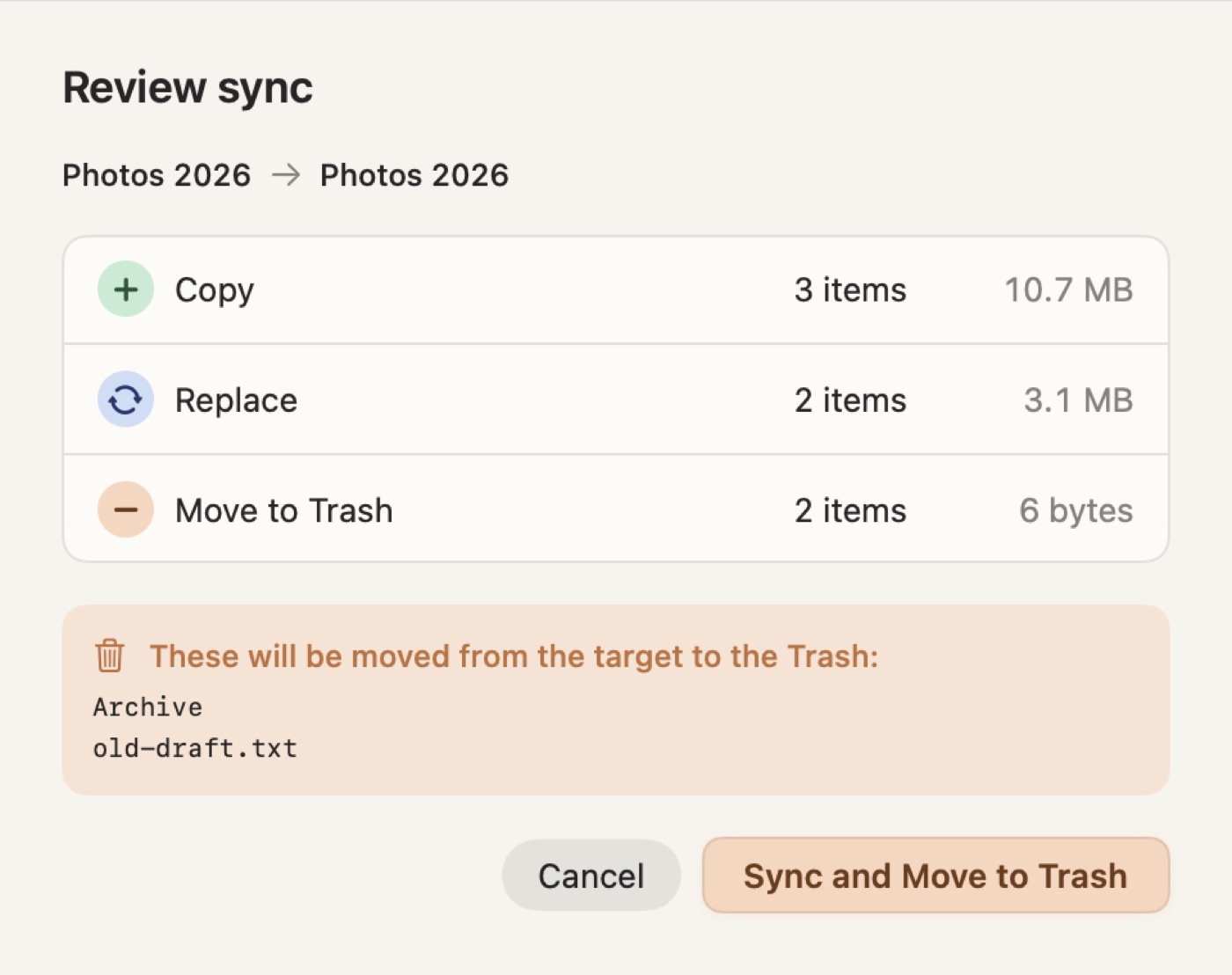
Every sync app carries the same fear: one press and your only copy is gone. File Sync plans every action before it touches a single file. Press Sync and a review opens first: how many items will be copied, replaced and moved to the Trash, and how much will be written. If anything is headed for the Trash, every item is listed and the button changes to Sync and Move to Trash, so you cannot miss it.
Replacements are written to a temporary copy and swapped in, so stopping halfway never leaves a broken file. Nothing is ever deleted for good.
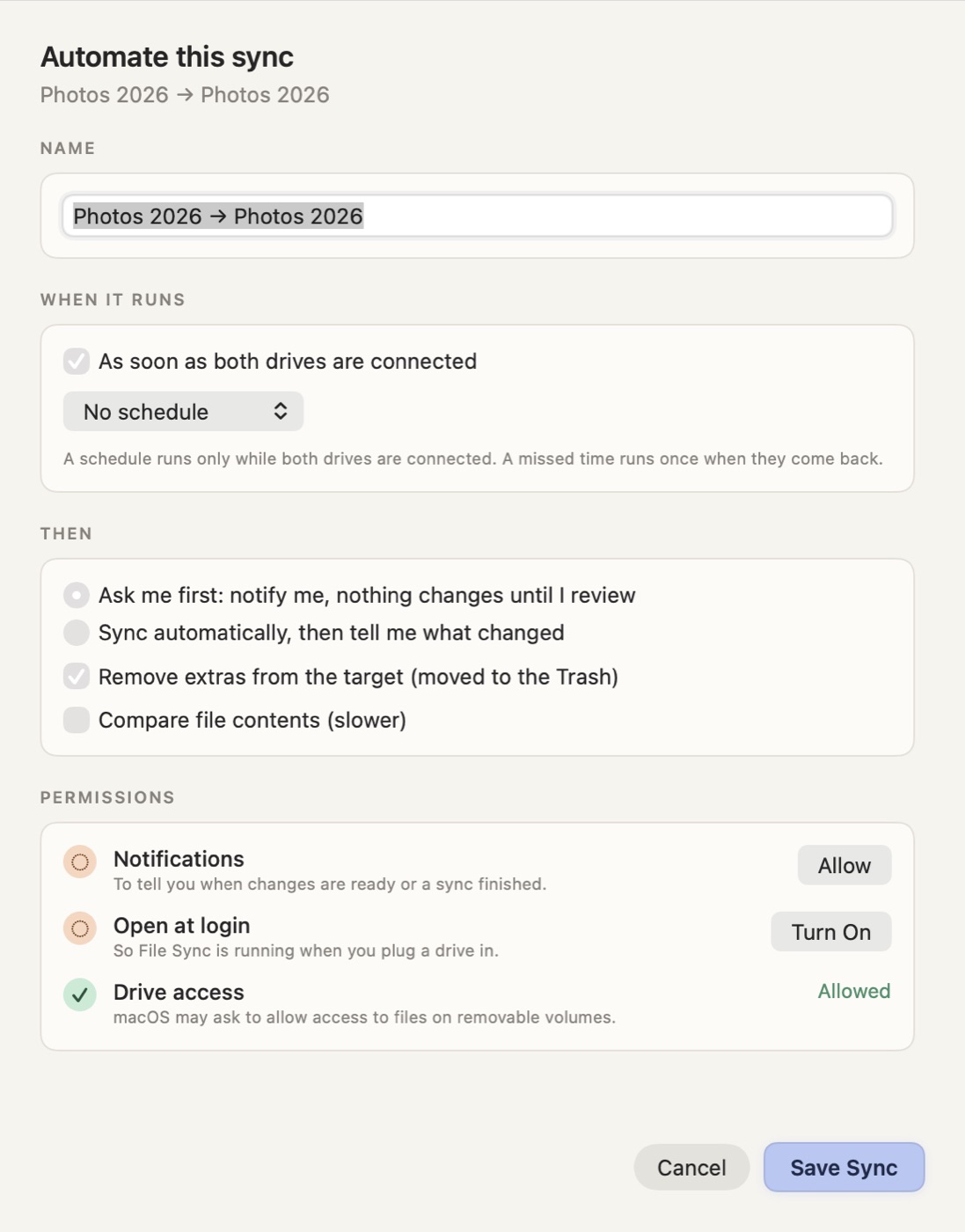
Backups only help if they happen, so you can also save a pair. Press Automate and it runs as soon as both drives are connected, every few hours, daily or weekly. Miss a time and it runs once when the drives come back. Choose Ask me first and it compares, sends a notification and waits for your review, or let it sync and tell you what changed.
05 · Where it stands
Built, free and open source
File Sync is a native Mac app in SwiftUI, with Swift 6 strict concurrency, for macOS 15 and later. It has 32 engine and scheduler tests and zero warnings, and every line is on GitHub. Version 0.1.0 is out as a download. It is a homemade build that Apple has not notarized, so macOS stops it once the first time you open it; the install guide walks you through that in five steps.