One Pager widget, in the look you pick

The widget is the heart of Pager. Pick its look in the app and tap Apply.

An LCD-style screen, your friends' initials in lights, and keys big enough for a thumb. Pager has one Home Screen widget where your closest people live, and it wears whichever look you pick.

01 · The widget

One widget, many looks

A 90s pager, rebuilt for the iPhone Home Screen.

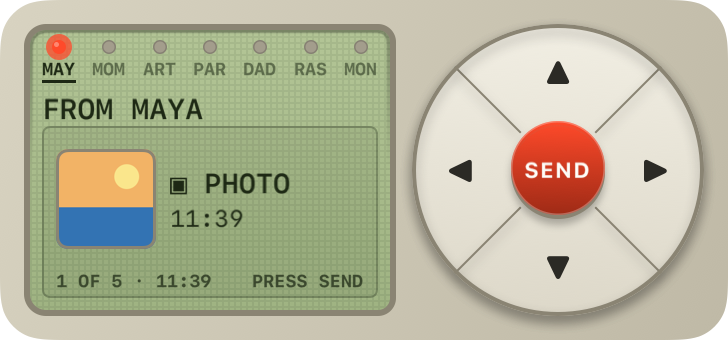
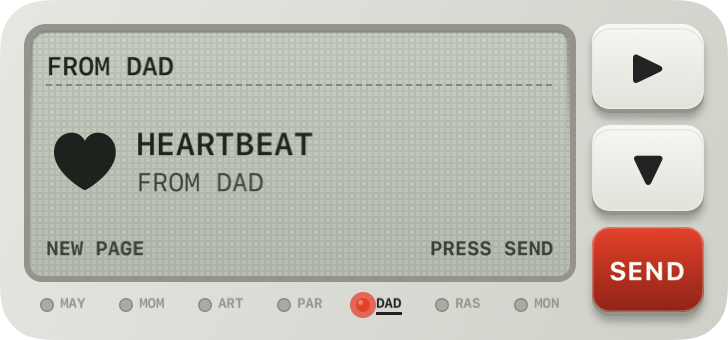
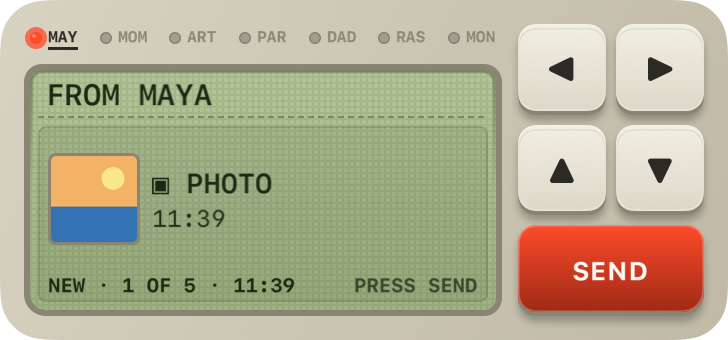
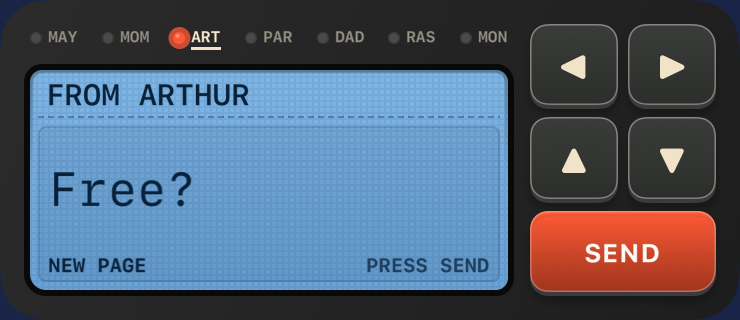
Add the Pager widget once. On the Profile page, pick a layout (Classic Pad, Classic Slim, D-Pad or Three Button), a screen colour (green, blue, orange or grey) and a light or dark body, then tap Apply. The widget changes to match, and so does the Lock Screen pager unless you set it apart. New installs start as Classic Pad in green.
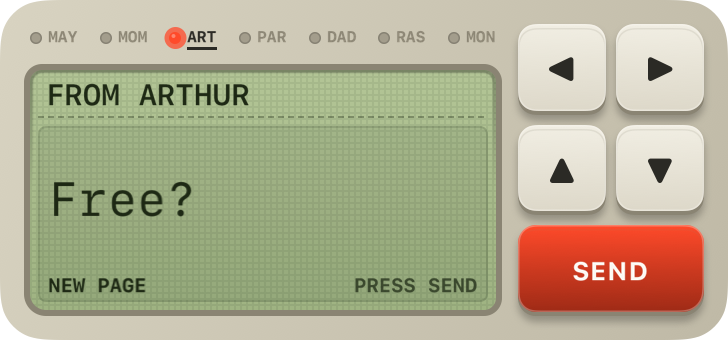
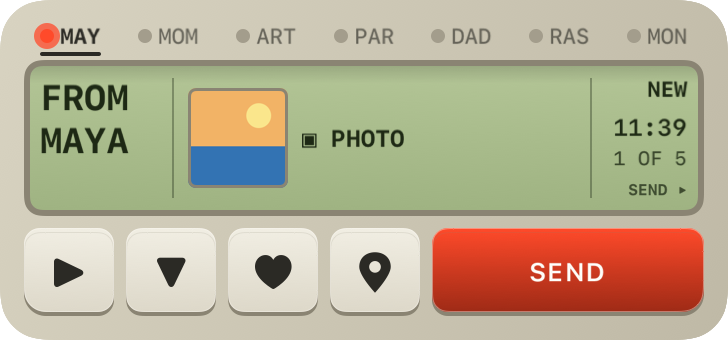
The Pager widget as Classic Pad in green: From Arthur, Free?, with the red SEND key The Pager widget as Classic Slim: a photo from Maya, with the red SEND key The Pager widget as D-Pad: a photo from Maya, with SEND in the middle of the pad The Pager widget as Three Button in grey: a heartbeat from Dad, with the red SEND key
02 · Try it first

Try it before you add it

No guessing from a screenshot. The Profile page has a live pager you can press, with rows of thumbnails for layout, screen colour and body, so you see each look before you apply it. Heartbeats, check-ins and urgent pages get their own cards on the screen, and a photo shows as a small picture.

Classic Pad in green with a light body: a photo from MayaClassic Pad with a dark body and a blue screen: From Arthur, Free?